How to Improve the Graphics for “Cyberpunk 2077” on Consoles
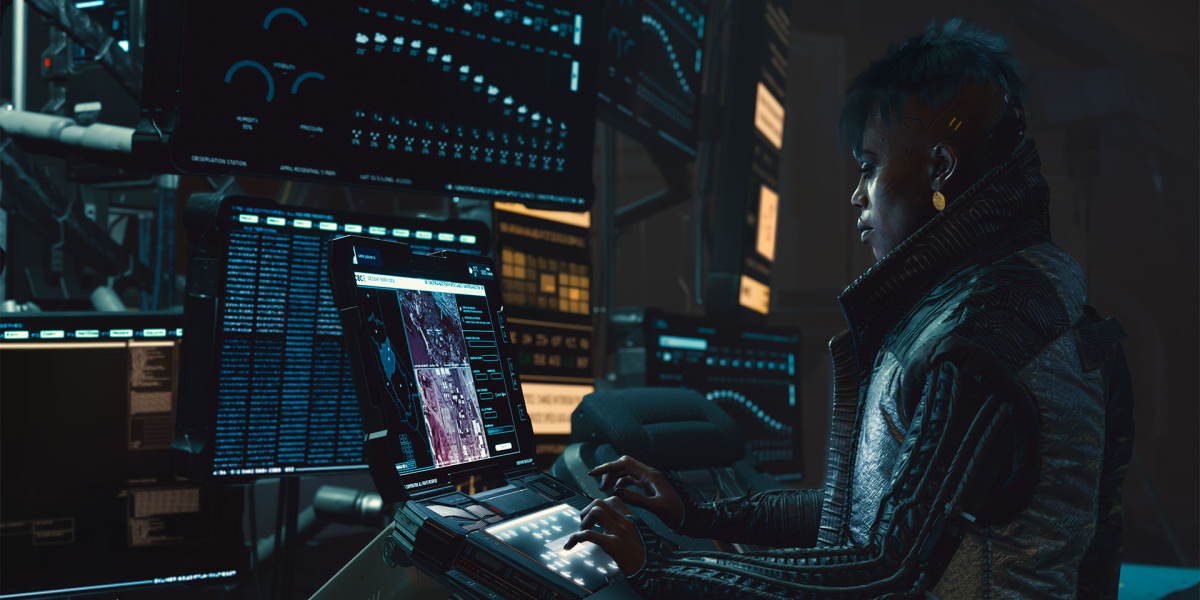
Fix some issues without having to return the game.
Earlier this week, excited fans of Cyberpunk 2077 were disappointed to find a bunch of bugs, faults, crashes and blurriness when they tried to play the highly anticipated game on last-gen consoles PS4 and Xbox One.
Cyberpunk: 0
— I AM KLOOT (@fura_93) December 14, 2020
Bugs: 2077
🥵👌#Cyberpunk2077Hype #Cyberpunk2077 #CYBERBUGS2077 pic.twitter.com/Nu0gbnXpIZ
Considering we have already waited what feels like forever for the game ‘cos of delays and the continuous need for updates, the news is extremely disappointing, especially for those of us struggling to get our hands on a PS5 or Xbox Series X.
C’mon, you can’t find them anywhere rn.
While the developers, CD Projekt Red, have made a statement that they’re offering refunds and quickly whipping up some updates to fix the problem, there are things that you can do to improve the experience without having to wait till February next year or return the game.
To make the game look and feel more ‘gritty’ and ‘raw’, CD Projekt Red has added several default visual filters. Unfortunately, this can sometimes make the game look like it’s filled with static or a bit blurry.
This is worsened if you’re playing at night because lights in the game cast pixelated glare onto city streets (no one wants that).
These visual effects alongside all the bugs and problems that come with the last-gen consoles result in the game being kinda difficult to play.
Thankfully, you can reduce some of these issues by toggling a few options in Cyberpunk 2077’s graphics settings.

Here are the steps:
- Firstly, you’ll want to open the Main Menu, then 'Settings', and head to the 'Graphics' section.
- From here, you’ll want to open the 'Gamma Correction' mode to adjust the game’s brightness. With this, your aim is for the game's blacks to be as dark as possible without obstructing your field of vision, so make it as bright as you can.
- Next, you’ll want to turn the 'Film Grain', 'Chromatic Aberration', and 'Motion Blur' settings OFF.
If you’re playing on a console and TV that supports HDR you can also make a few tweaks to get some better contrast and brighter visuals out of Cyberpunk 2077.
Here's what you have to do:
- Firstly, you’ll want to open the Main Menu and head to 'Settings'.
- Next, you need to click the left analog stick on any screen to access HDR settings.
- From here you can maximise brightness, paper white, and edit tone-mapping midpoint options.
Finally, there is also an option for Xbox Series X players who are having some trouble with the game’s visuals.
Here are the steps:
- Firstly, you’ll want to open the Main Menu and head to 'Settings'.
- Using the bumpers on your controller, navigate to the 'Video' tab.
- Next, you will want to toggle on the Xbox’s 'Quality mode' in 'Video' to prioritise resolution over frame rate.

While these changes won’t make the game perfect, hopefully they'll make it slightly easier to work with while you wait for the next updates.
Header Image: CD Projekt Red
Topics
Ref: d5986b09-1812-462e-8453-ac930046cc04






Comments & Feedback
Share your opinion
Emoji cheatsheet Formatting Comment guidelines