Is Your Disney+ Too Dark While Streaming? Here's How to Fix It
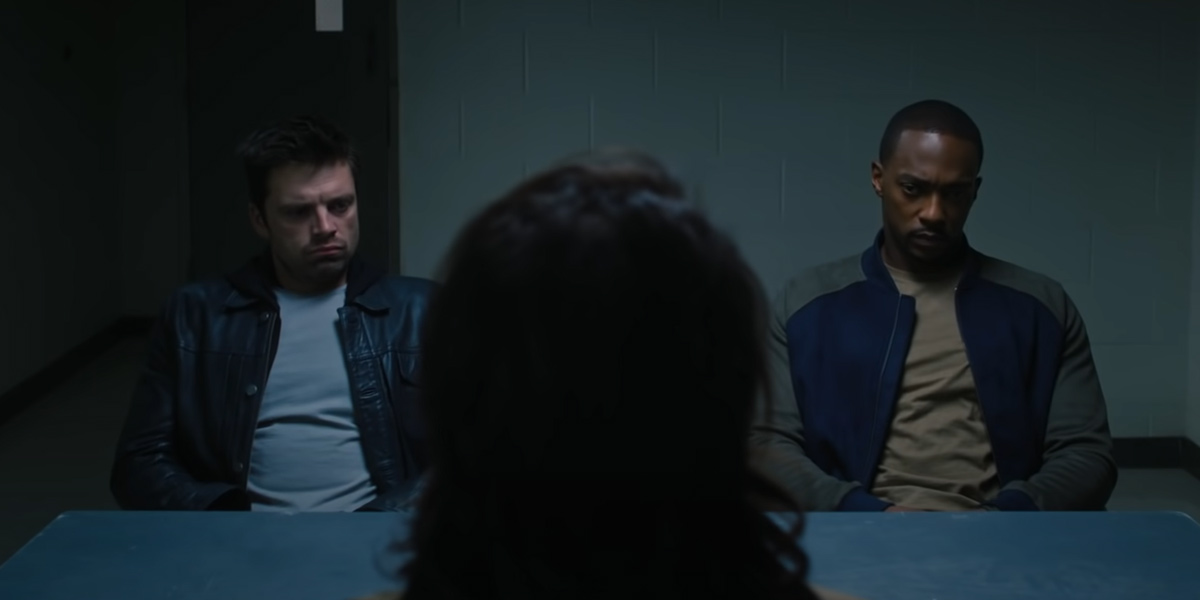
Halp pls.
Remember when Episode 3 “The Long Night” of Game of Thrones Season 8 was too dark? Looks like similar problems are happening when people are watching Disney+.
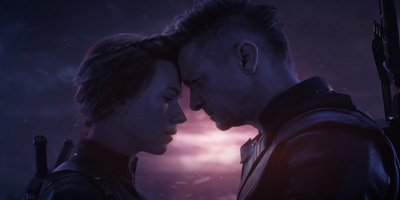
Regular viewers of Marvel’s The Falcon and the Winter Soldier have noticed just how dark some of the scenes are and it’s starting to cause some frustration among fans.
Your viewing experience doesn’t have to be unenjoyable though. In fact, there’s a simple way to fix this in your TV settings so you never have to get up close to the screen again.
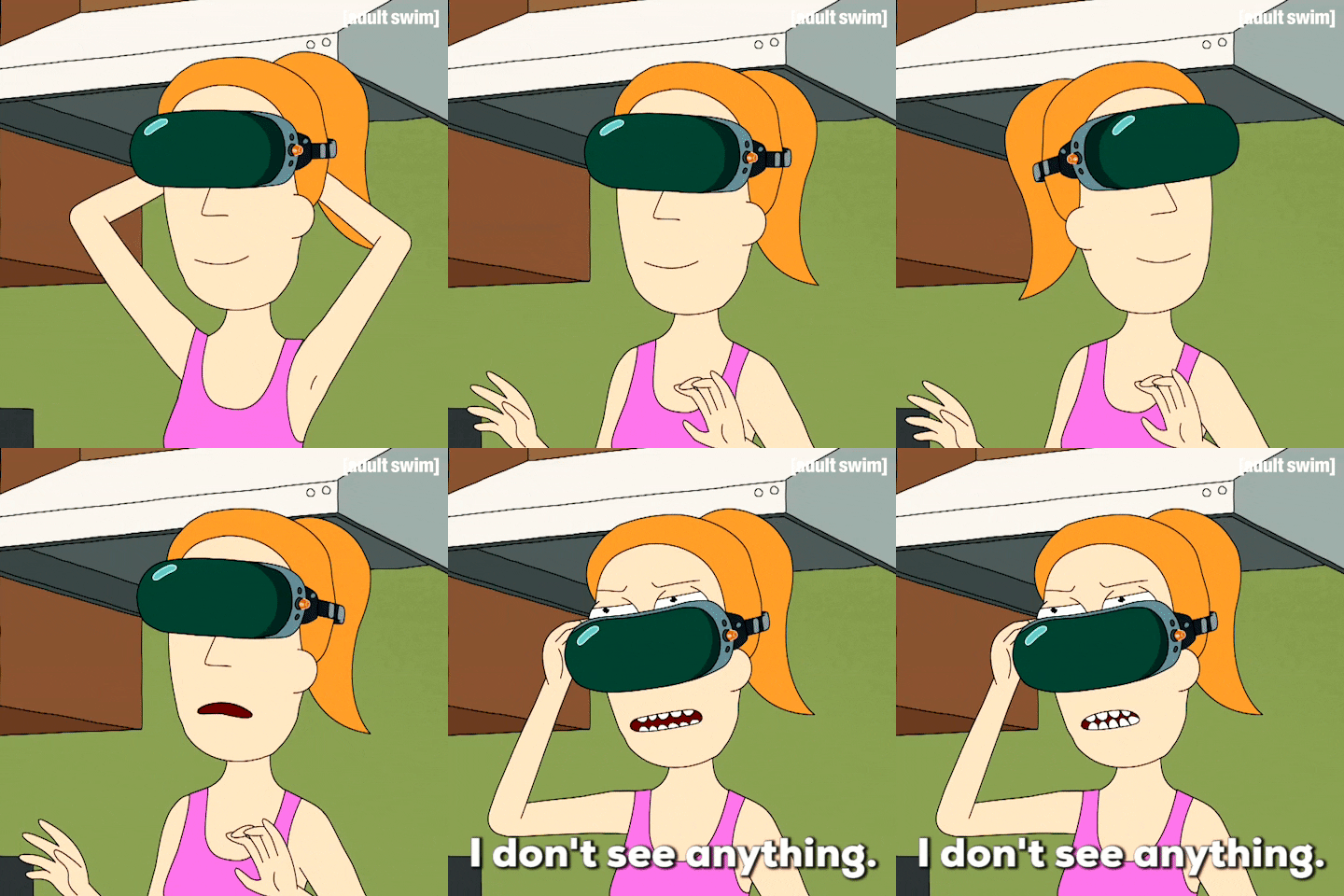
Why is it so dark?
It’s actually quite common for a TV to struggle with colours for HDR (High Dynamic Range). HDR is designed to offer brighter highlights and a wide range of colour detail for a better overall image.
Basically, it means that dark colours will be very dark and bright colours will be very bright.
To unlock the full viewing experience and stop those moments when you can’t see a thing in those darker scenes, your TV needs to have some brighter backlight settings.
Enough nerd words! How do I increase the Disney+ brightness?
Most smart TVs have the solution just sitting there in the menu settings, so let’s get to it and make a dark Disney+ a thing of the past.
Start by checking your TV has a default brightness setting. Generally most smart TVs will have an adjustment for the picture in the quick settings. What you want to do is change the picture mode to Dynamic (Vivid).
You know how when you go to the store and all the new TVs have these high quality and colourful slow motion images of a waterfall or a hummingbird? They look like that because they are set to dynamic picture.
By selecting this mode for your TV, it will help brighten those darker scenes you’ve been struggling to see and create a better picture.
My TV doesn’t have a dynamic picture mode. What now?
All g fam, not every TV has one but we can work around this. You’re gonna have to change the brightness manually.
Find the way to your TV’s display settings and take a look at the brightness and backlight settings. If the picture you’re on is too dark, just increase both those numbers.
Now, finding a good balance is a bit of an art so you will need to play around with these until you are happy with the results.
If nothing has improved, it’s time to turn off HDR. You won’t get as high a quality image, but you will be able to see what you’re watching which is always a novel idea.
Finally—and we can confirm we’ve done this many times—you might need to make your room darker. Close the curtains and turning off all the lights might sound silly but trust us, it makes a big difference.
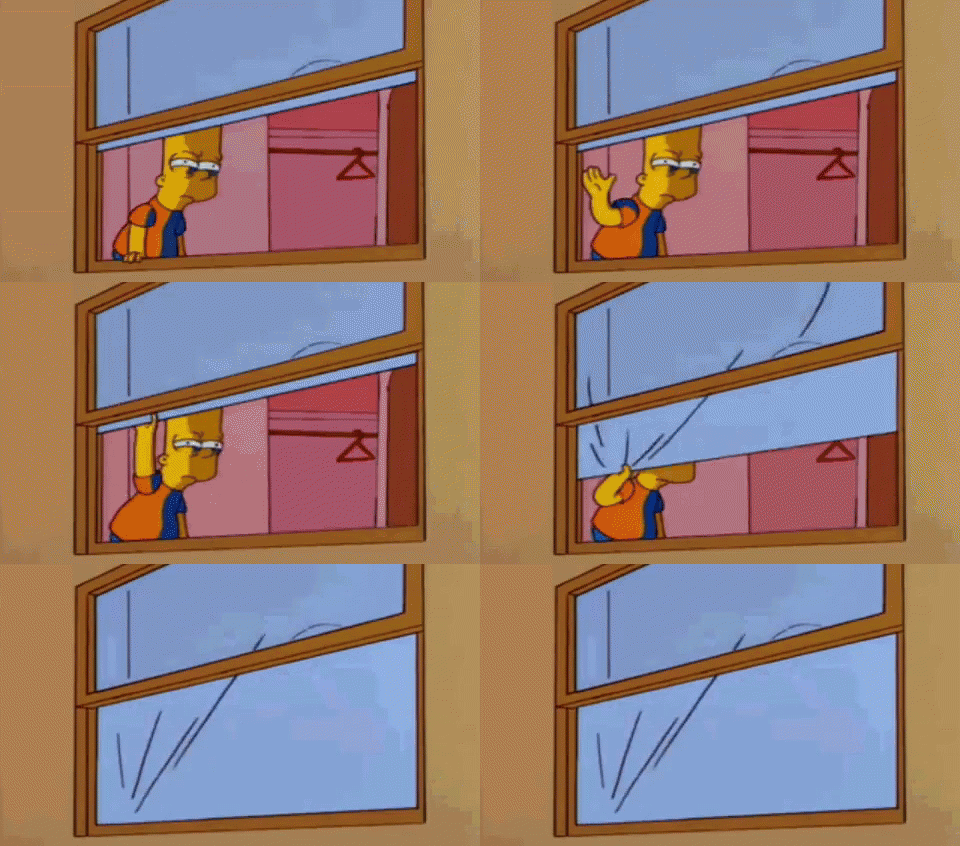
No one should have to struggle through watching some Disney+ especially if it’s new episodes of The Falcon and the Winter Soldier, so play around with any of these methods to find what works for you.
Header Image: Marvel Entertainment




Comments & Feedback
Share your opinion
Emoji cheatsheet Formatting Comment guidelines