How to Print Straight From Your iPhone or Android

Get it printed in our step-by-step guide.
If you’ve got a document that needs printing immediately but getting your laptop from your bedroom is too much effort, we feel you.
That’s why we’re here to breakdown how to print from your iPhone or Android.
As it turns out, it’s super easy to do, so don’t worry if you’re not the most tech-savvy person.
Before we get started, all you’ll need to do is make sure you’ve got a printer and an iPhone or Android.
Let’s get into it.
How to print from your iPhone.
Apple have thankfully taken all the difficulty out of this by creating a thing called AirPrint, which most printers now support to allow you to print directly from your iPhone.
Btw, if you’re wondering if your printer works with AirPrint, just search for it in this list. You can thank us later.
Step 1: First step is to open the document, webpage or image that you want to print out. This can be found in your web browser, Photos app, Files app or email.
Step 2: From here you need to tap the “Share” button (it looks like a square with an arrow pointing up). Depending on the app you’re using, there might not be a “Share” button. In this case look for the three dots icon.

Step 3: In the pop-up menu, scroll down until you see the word “Print” and a printer icon. Tap it.
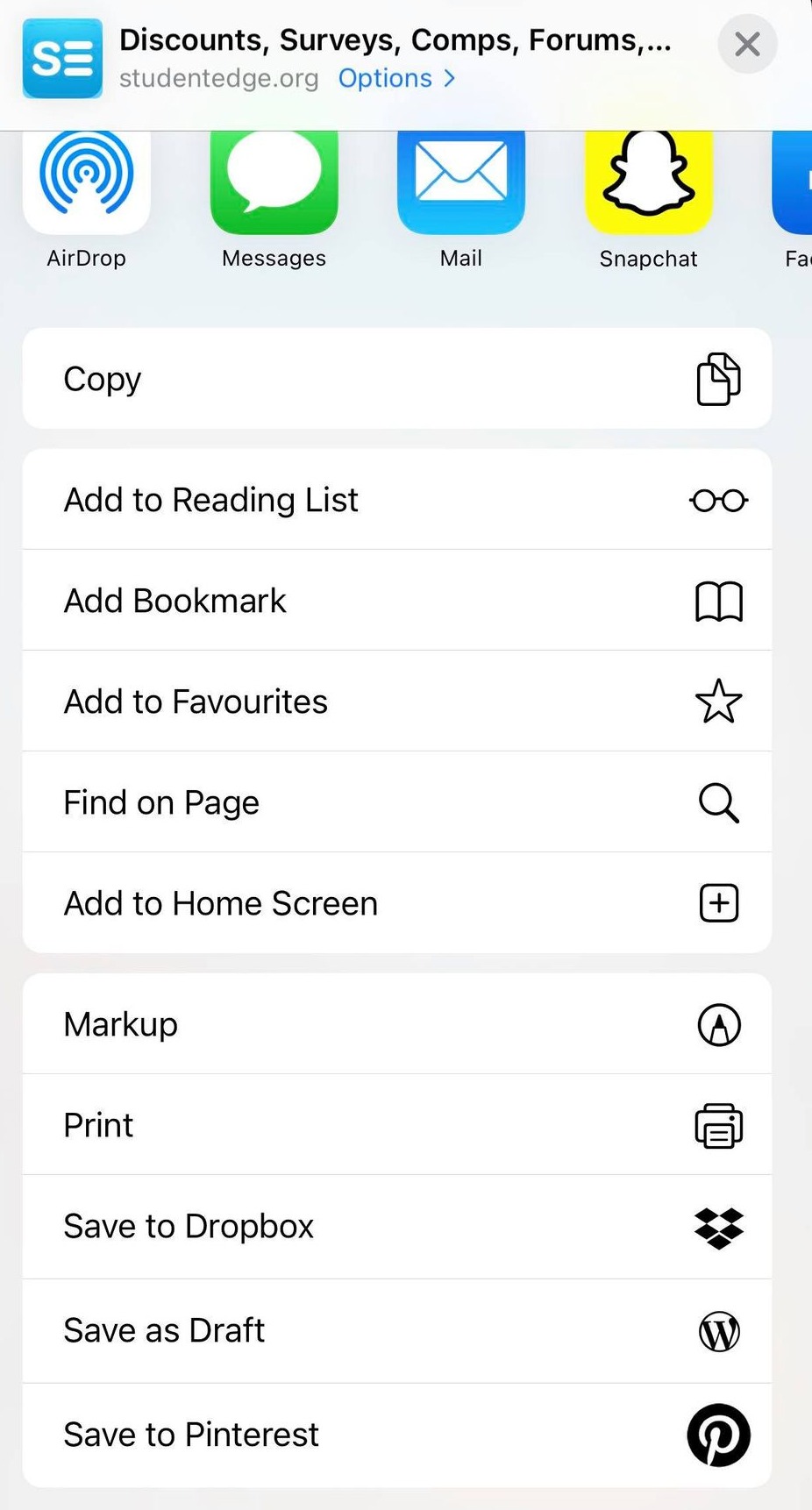
Step 4: The “Printer Options” screen with now pop up. Tap “Select Printer” and find the printer name you want to use.
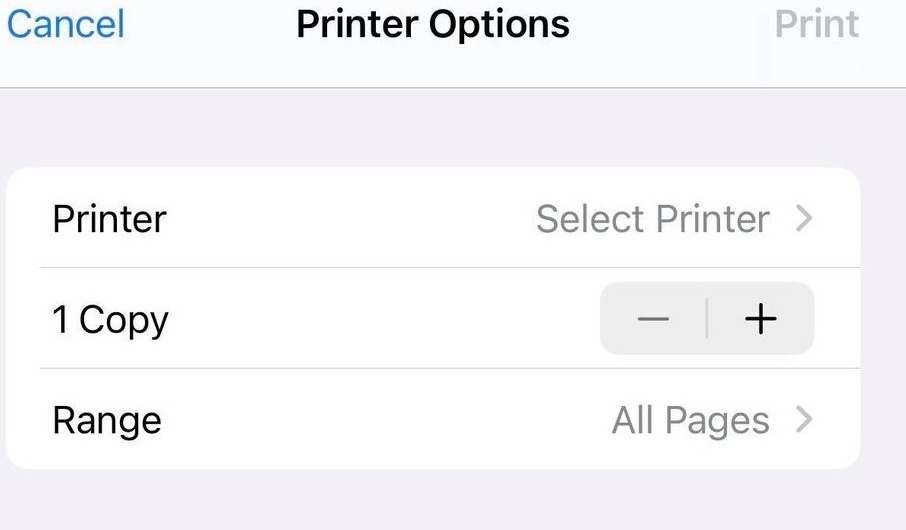
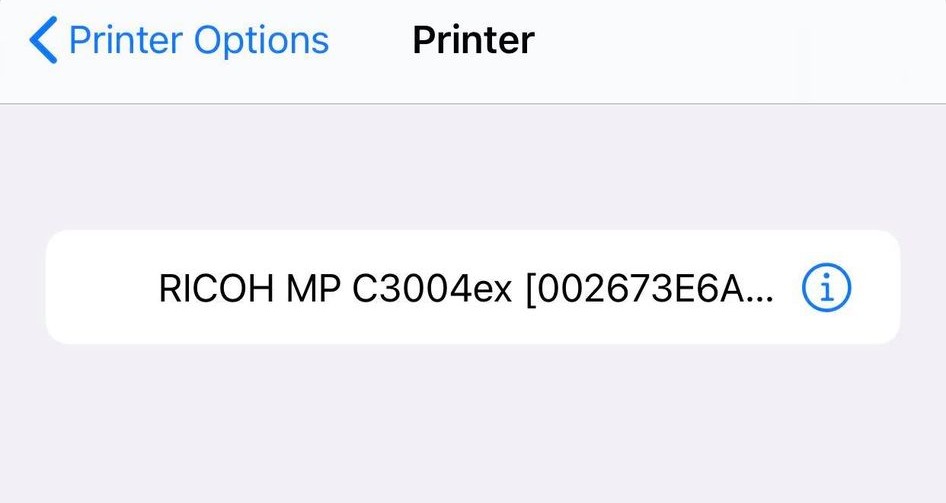
Step 5: Now that you’ve done that, hit the word “Print” in the top-right corner and you’re done.
The cool thing is that AirPrint enabled printer will now pop up as a preferred device whenever you’re near it and need some printing done.
If you want to add another printer, just follow the same steps above with a new printer.
There you go, that’s how easy it is to print your iPhone.
How to print from your Android.
The good news is Android devices are even easier to print from, being able to detect a nearby printer if both devices are on the same Wi-Fi.
Step 1: Make sure that your Android and printer are both connected to the same local network (Wi-Fi).
Step 2: Open the document you want to print off on your Android device.
Step 3: Tap the three dots at the top-right of your screen.

Step 4: In the pop-up menu, tap on “Share”.
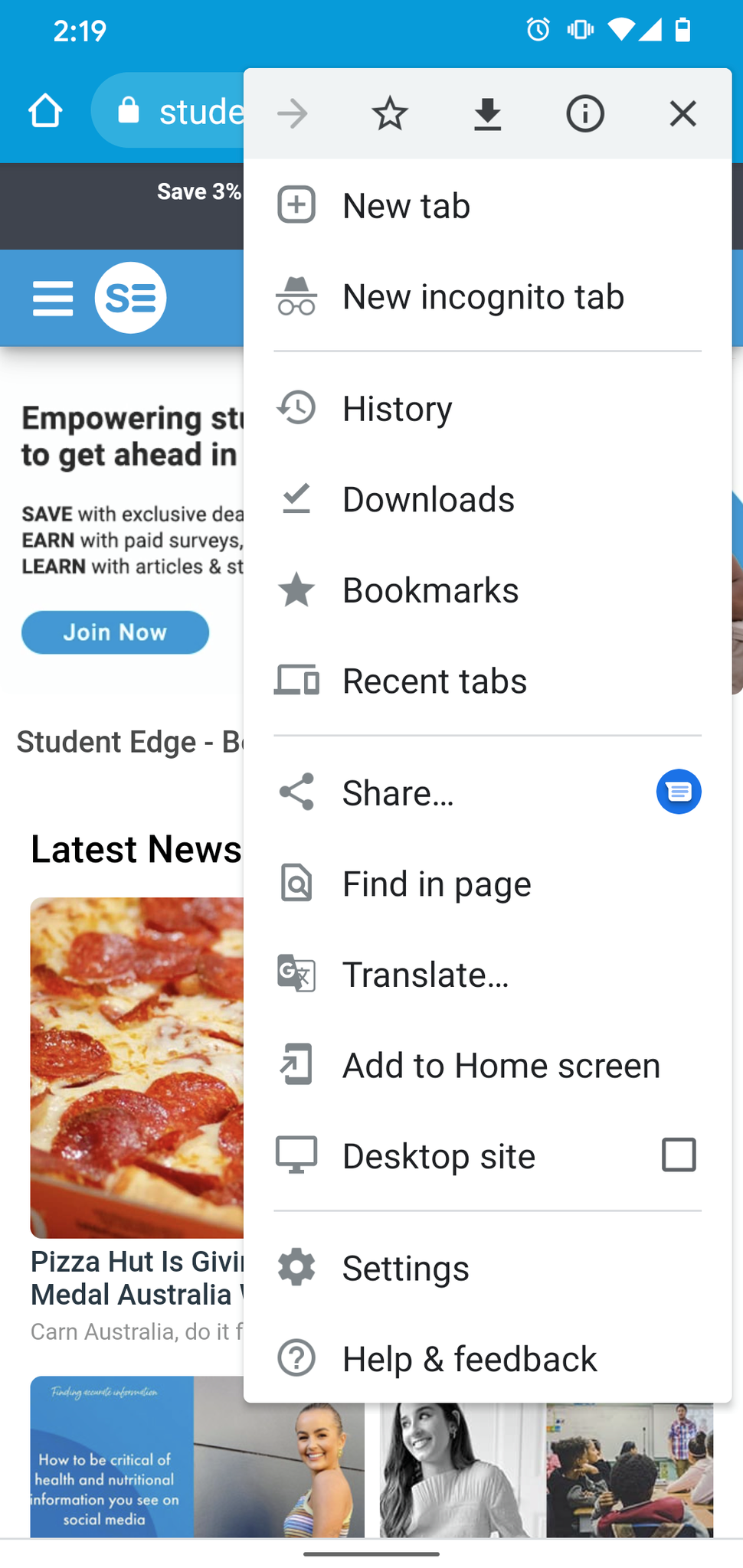
Step 5: In the new pop-up, slide through the bottom selections until you find the word “Print” and a printer icon.
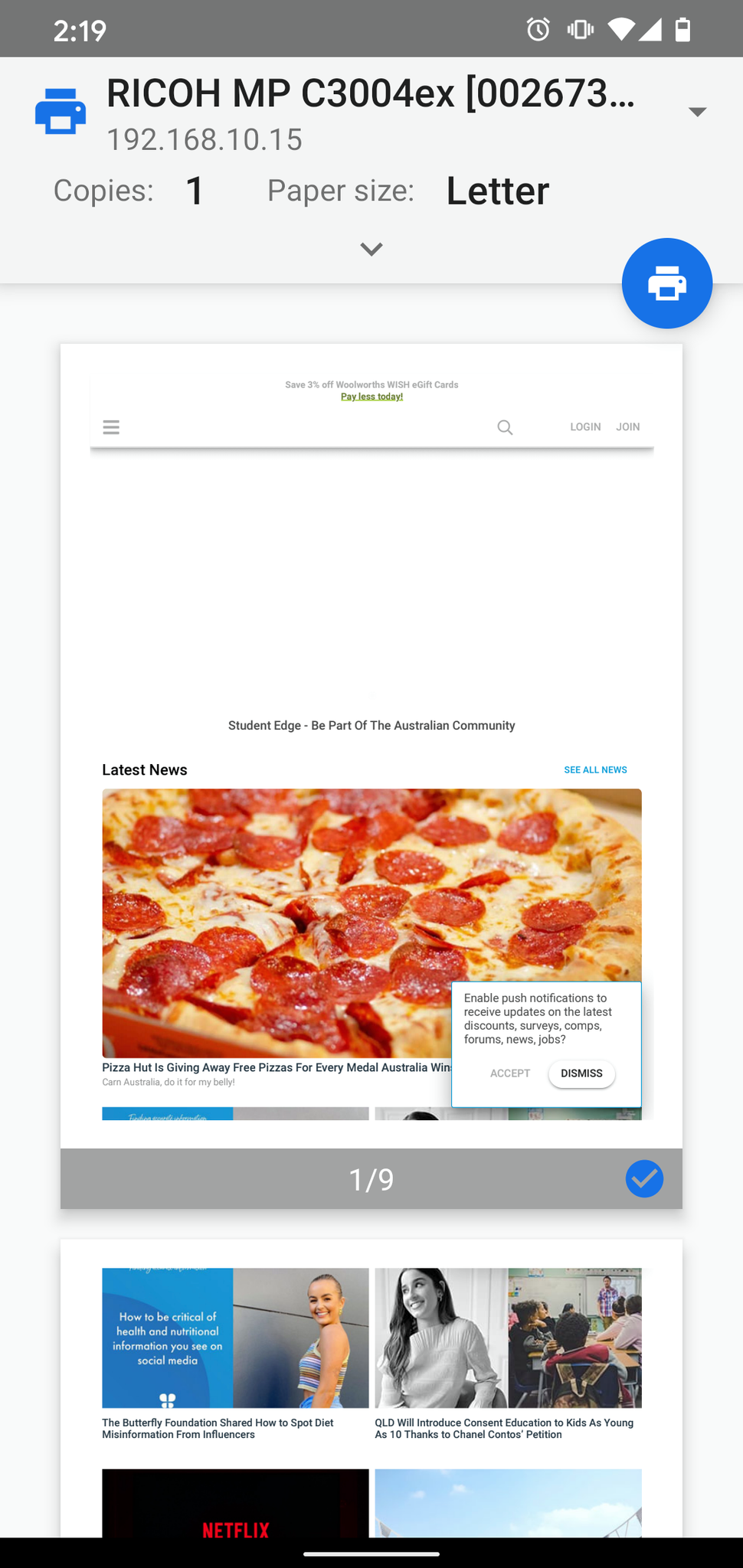
 Step 6: You now will be taken to a “Print Preview” page. Here you can review the documents you are printing off and deselect certain pages you don’t need printed. You can also choose how many copies you want, colour/black and white and paper size.
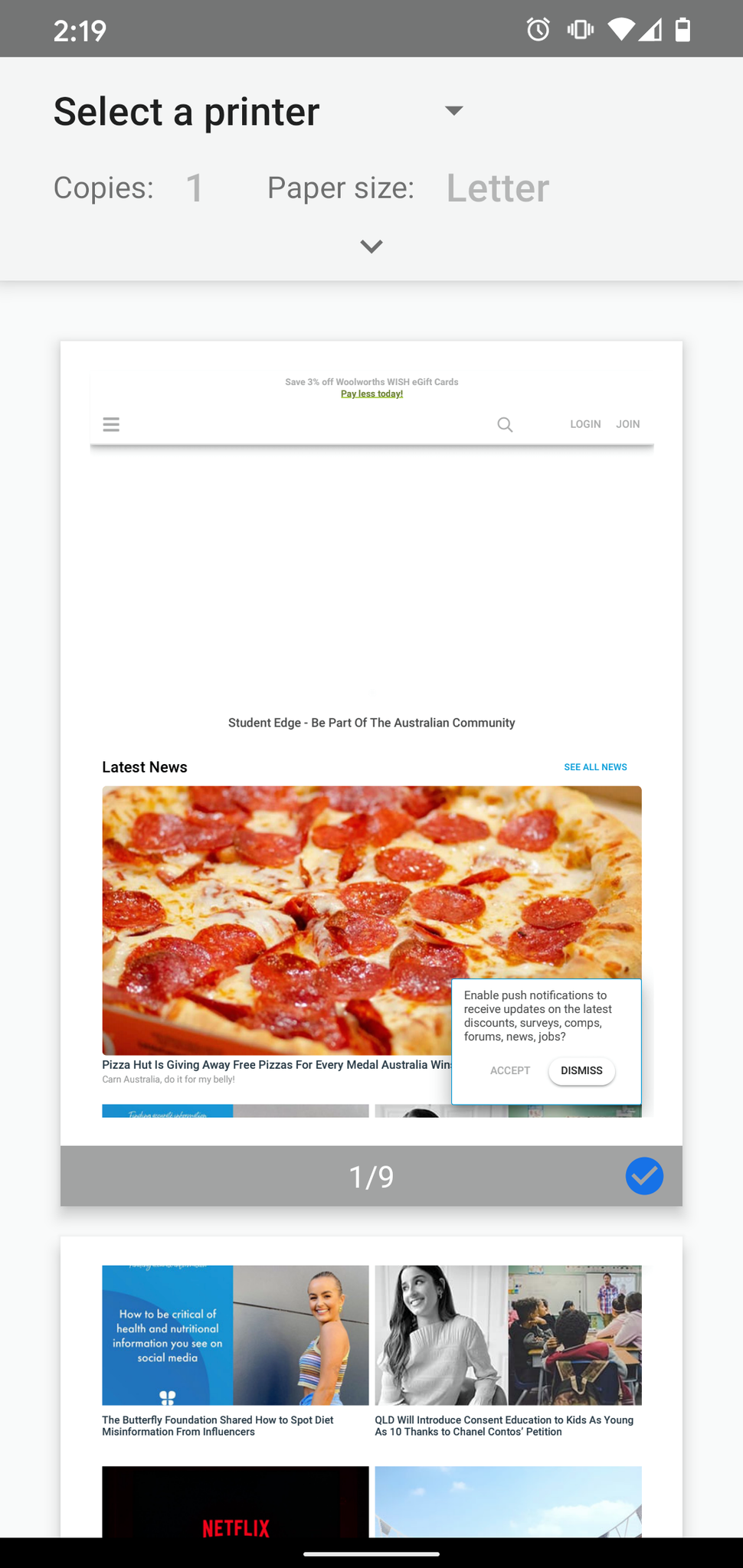
Step 7: Once you’ve done that. Tap on the “Select a printer” drop down and pick your printer.
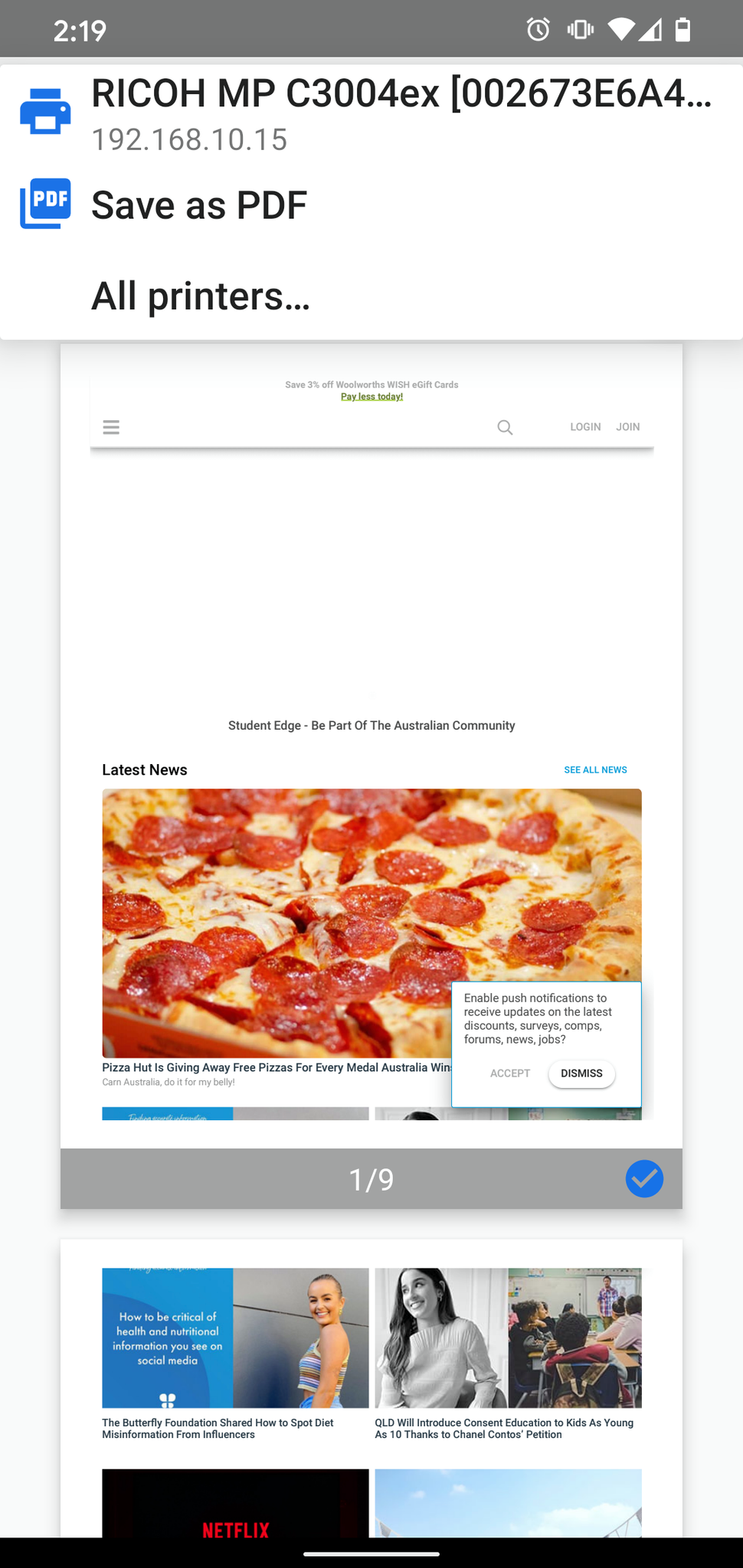
Step 8: All you need to do now is tap the white printer logo in the blue circle, hit “Ok” to confirm and your document will start printing.
It’s as simple as that. Now you know how to print from your iPhone or Android device.
Header Image: @benkolde via Unsplash
Topics
Ref: e3838ba9-2198-452c-ac3a-ad6e007d46c8





Comments & Feedback
Share your opinion
Emoji cheatsheet Formatting Comment guidelines