How to Block Contacts on iPhone and Android Devices
Bye Felicia!
Nothing is more mildly annoying than receiving a text or call from a business spamming you with their latest special deal, or worse: that ex who won’t leave you alone and move on.
Luckily for you, phones these days can block people already in your contact list and even stop random numbers from getting in touch with you. Best part is they won’t even know you've blocked them. Gotta love technology.
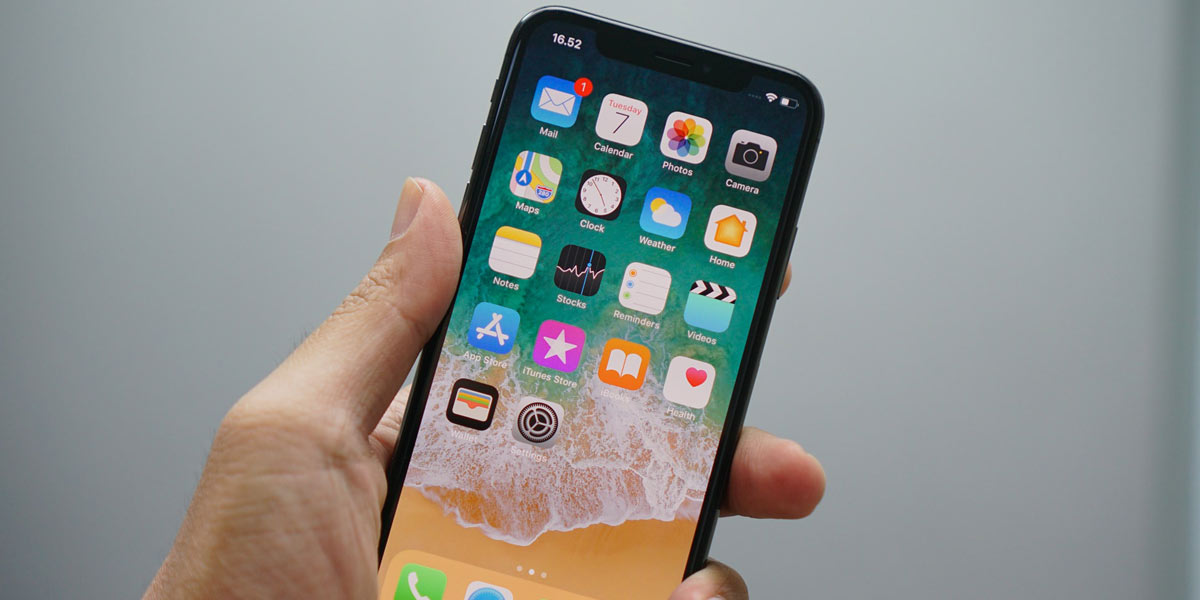
To stop you from being harassed and ensure that your messages are for friends only, here’s how to block contacts on iPhone and Android devices.
How to block contacts on iPhone.
We'll kick off with the ever-popular iPhone, so if you're an Android user, you can skip past this part.
- Open the 'Messages' app on your iPhone.
- Click on the text message from the contact or number you want to block.
- Click on the contact or number at the top of the message, then tap on the info button.
- This will open up the details screen. To the right of the name or number, there is an arrow. Tap that to open the contact card.
- In the card will be several options. At the bottom will be ‘Block this Caller’. Go ahead and tap that.
- A pop-up will appear asking you to confirm your choice. Once you tap ‘Block Caller’ you’re free!
If you’re wanting to unblock a contact ‘cos you made a mistake or you and your ex reconciled (no judgement) you can easily unblock them by heading into the 'Settings' app, tapping 'Messages', opening ‘Blocked Contacts’ and swiping left and tapping ‘Unblock’ on the contact.

How to block contacts on Android.
Blocking a contact on Android will depend on which Android device you’re using, but most apps work similar to the Google 'Messages' App.
- Open your 'Messages' app and tap a message that you want to block.
- Tap on the three dots at the top right of the screen.
- Tap on details in the drop-down menu.
- In the details page, tap on 'Block and report spam'.
- A screen will then pop-up. You can choose to report the message as spam, but that is up to you. Once you tap okay, all calls and texts from that contact will be blocked.
If you want to unblock them, in the 'Messages' app, again tap the three dots to access the 'Spam and blocked' screen. There you can see the messages you’ve blocked, and tap unblock if you choose.
By the way, if you're sick of random businesses calling or texting you, enter your number on the government's do not call register. That should stop them contacting you in the first place.
That’s how easy it is to block unwanted texts and calls to your phone. Happy blocking… I guess.
Header Image: @bhagzs via Unsplash
Topics
Ref: edf3b699-3c89-45c8-8d70-ad5600659aa4


Most Popular



Comments & Feedback
Share your opinion
Emoji cheatsheet Formatting Comment guidelines
Thank u