Here’s How to Mute Your Group Conversations on Messenger, Instagram and More for Study Season

Call us Emily Blunt and John Krasinski, because this is about to become a quiet place.
We know you love having a yarn with your mates and sharing memes on Facebook Messenger.
We also appreciate how group convos on Instagram and WhatsApp help you to feel connected when you maybe don’t have enough time to hang out in person.
And we similarly love a great, Bitmoji-riddled text-chain, with a few fun GIFs thrown in.
This article isn’t trying to disconnect you from these minor joys.
That said, sometimes you just need everyone to give it a bit of 'shush', as your phone becomes overwhelmed with notifications all night long with unnecessary chime-ins or unwanted digressions.

And when you’re trying to concentrate on your homework, or cramming for an upcoming essay or exam, those dozens of unhelpful LOLs and cartoons of your friends dunking can seem especially annoying.
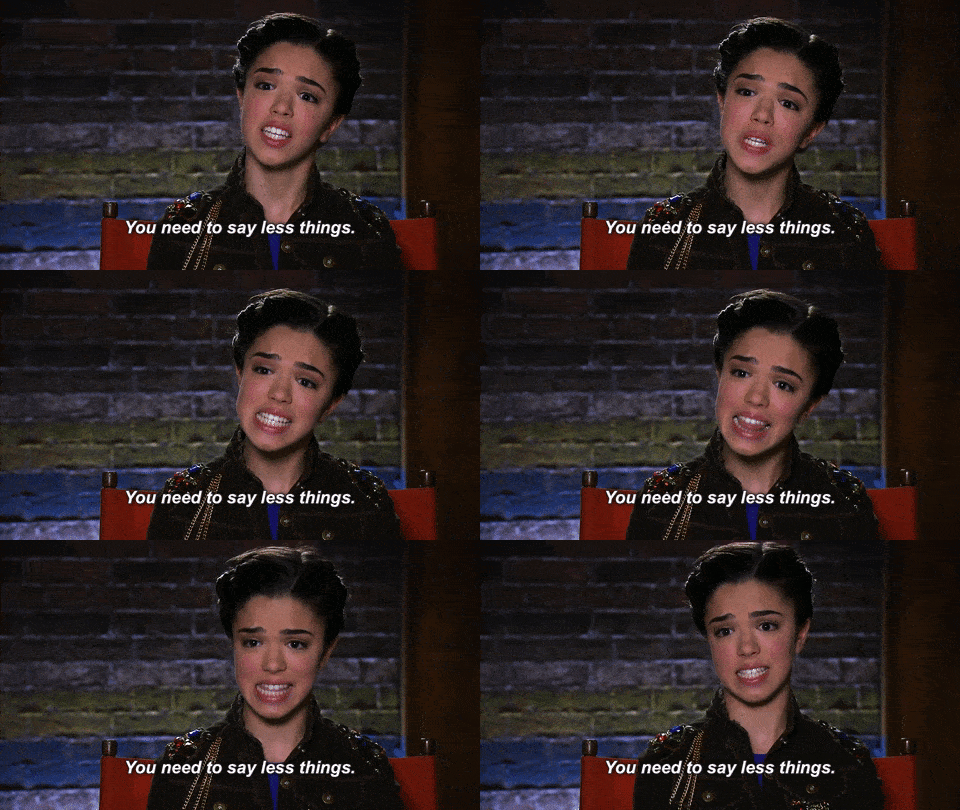
But what can you do? Awkwardly leave the conversation without explanation, leaving your friends to wonder what it is they said that pushed you away? And then what? How do you get back into those exclusive little private groups? And will they be talking about you while you’re gone?!
First of all, relax. You wouldn’t want to be part of a group that gossips about you anyway, and real friends understand when you need some quiet time, blah blah blah. (jk those are still very valid points.)
Just cheekily 'mute' the conversations instead.

This means the convos will carry on as normal, but you won’t be inundated with pop-up notifications or reminders. Rather, when you feel the need, you can simply go to Messenger or Instagram or wherever, and see what’s new.
Here’s how to do it:
Facebook Messenger:
- Open up the App.
- Select the conversation you want to mute.
- Tap the name of the conversation (at the top).
- Tap 'Notifications' and adjust accordingly; this may mean muting the conversation completely (for a certain period of time), or just certain types of comments and requests.
- When you’re ready to unmute the convo, just follow the above steps and select 'Unmute', or turn 'Notifications' back on.
Instagram:
- Open up the App.
- Slide to the right and see your private conversations.
- Select the conversation you want to mute.
- Tap the name of the conversation (at the top).
- Select 'Mute messages'.
- When you’re ready to unmute the convo, follow the above steps again and turn off 'Mute messages'.
WhatsApp:
- Open up the App.
- Visit the 'Chats' tab.
- Select the conversation you want to mute.
- Hold your finger down until a menu appears.
- Tap 'View Contact' to open the profile page of the contact or group.
- Hit 'Notifications' and toggle ‘Mute’ to ‘On’.
- You can mute for either eight hours, one week or a year. You can also turn off 'Notifications' too.
- The 'muting' will expire depending your selection. To unmute earlier, go back through the above steps and toggle 'Mute' to 'Off'.
Snapchat:
- Open up the App.
- Select the person or group you want to mute.
- Choose 'Settings' from the popup menu and hit 'Do Not Disturb'.
- To unmute the conversation, reverse the process!
Want to make sure 'Notifications' don’t pop up on your phone’s home screen too? iOS users, select the relevant App in Settings, tap 'Notifications' and turn them off! On Android, you’ll need to open the Apps menu, find the app in question and uncheck 'Show Notifications'.

As for texts, well...
Messages on iOS:
- Open up Messages on your iPhone or iPad.
- Select the conversation you want to mute by hitting the 'i' icon.
- Toggle 'Hide Alerts' to 'On'.
- When you’re ready to hear from this conversation again, toggle it back to 'Off'.
Messages on Android:
- Open up Messages on your Android device.
- Select the conversation you want to mute and tap the three vertical dots to the right.
- Select 'People & options' from the drop-down menu.
- Switch the 'Notifications' to 'Off'.
- Toggle it back to 'On' when you want to unmute the convo.
Now, enjoy that peace and quiet!

Header Image: NBC
Topics
Ref: ae37e9a3-6f13-4e6c-85b1-a94c0040bb8f






Comments & Feedback
Share your opinion
Emoji cheatsheet Formatting Comment guidelines