A Step-By-Step Guide on How to Set Up Your Modem With MATE
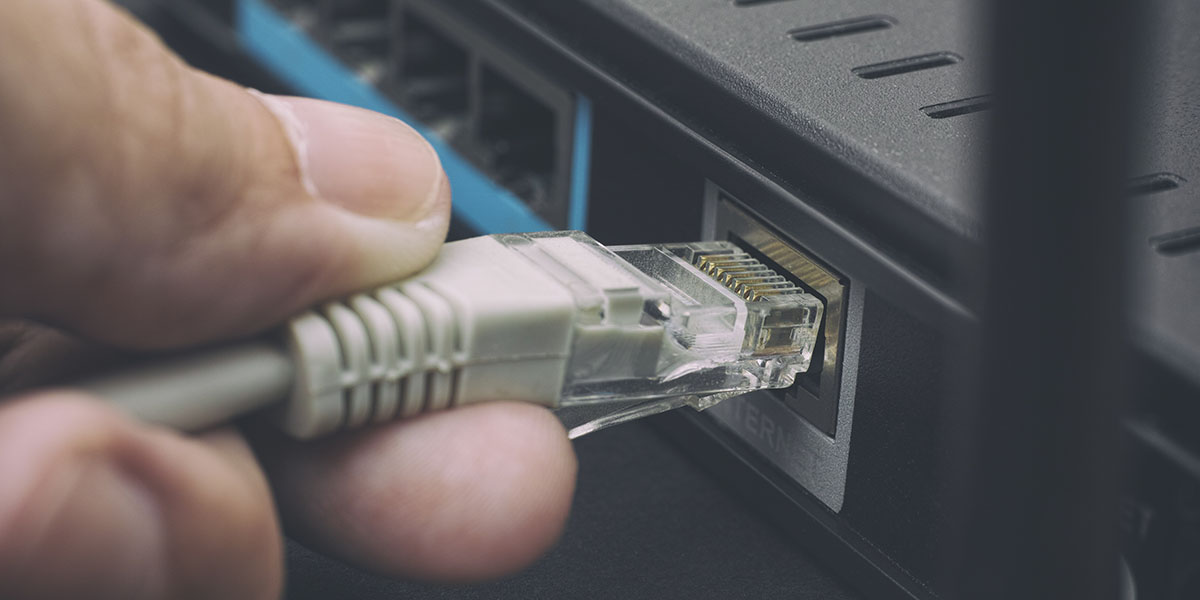
Avoid the mess that is setting up your internet.
This post is presented in partnership with MATE - internet and mobile.
So, you’ve managed to organise your first internet service but you’re dreading setting it up, getting it connected, and making sure everything works properly.
Don’t stress, that’s completely normal!
Thanks to MATE’s super helpful connection guides, we’ve broken down exactly what you will need to do to set up your connection, and why MATE should be your go-to internet provider.
Before you jump right in with all the cables, here is our step-by-step guide on how to quickly and correctly set up your new modem, so you can see just how easy it can be when you have the right mates.

1. Purchase an internet service and modem.
Firstly, you’ll want to actually sign up to nbn and get a modem. To simplify things, we’re going to break down exactly what to do if you purchase a MATE modem.
If you are using your own BYO modem, you can check out some more specific instructions on MATE’s website.
2. Figure out your internet service type.
The most common form of fixed-line internet service in Oz is now the nbn—Australia’s National Broadband Network. The nbn network uses a range of broadband technologies with one of the most common being Fibre to the Node (FTTN).
This type of connection uses a fibre optic cable which runs from the fibre distribution hub to a node in a residential street. The final connection between the street and your home is a copper line, like your traditional telephone cable.
As FTTN is one of the more popular nbn connection types, we’re going to stick with that kind of connection for now. But if your service is a different type of nbn, such as Fibre to the Premises (FTTP), Fibre to the Curb (FTTC), Hybrid-Fibre Coaxial (HFC or even ADSL MATE still has you covered with connection guides here.
3. Find the telephone wall socket in your house.
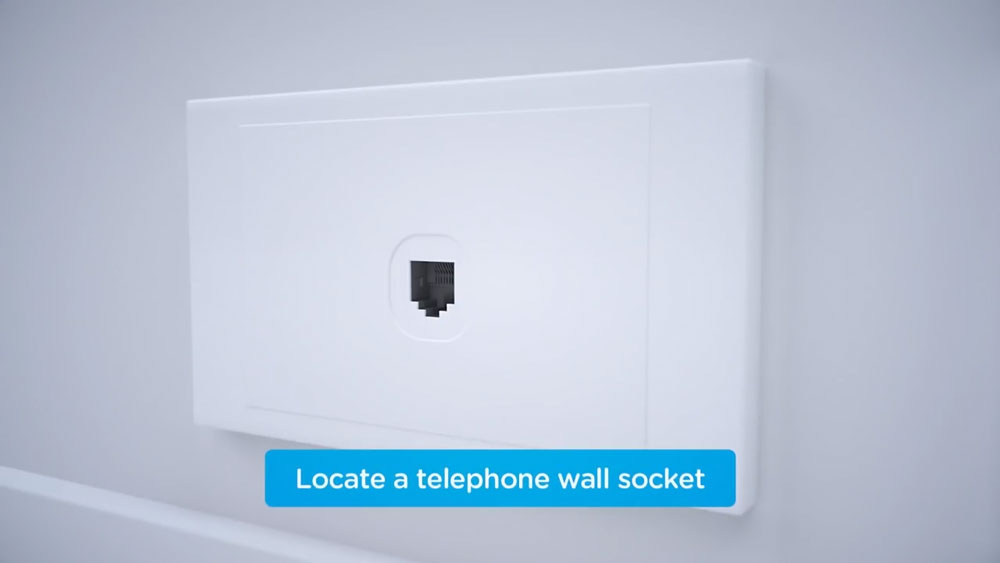
Next, you’ll want to locate exactly where the telephone socket is in your house. These are usually found either in lounge room, kitchen or a bedroom.
If you’re not quite sure what we’re on about, they look a lot like a regular wall socket, only the port is one singular, square-shaped hole instead of three short rectangles.
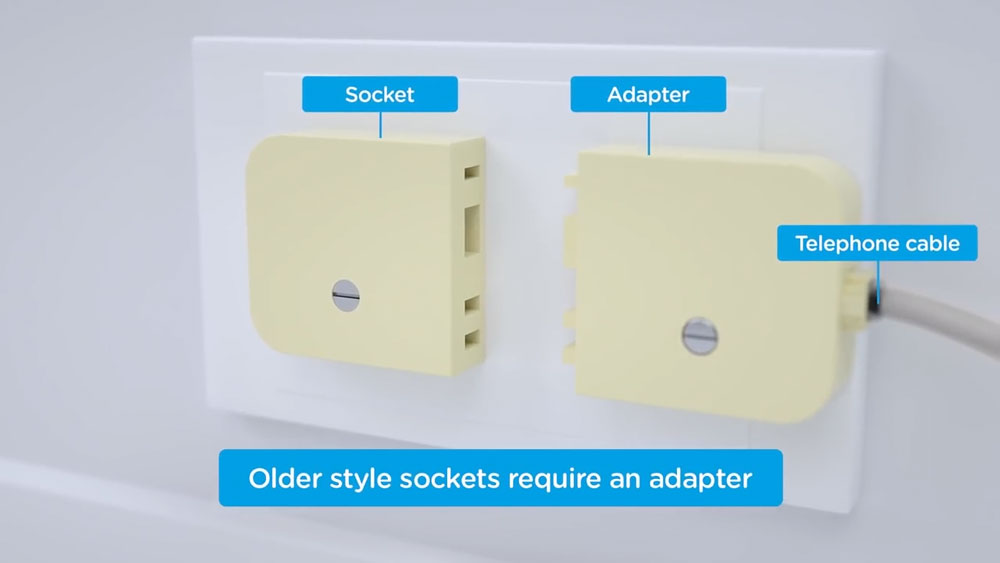
Still can’t find it? You might be in an older home which means your wall socket will look slightly different—more like two big yellow plugs with three prongs.
If you have one of these sockets, you’ll need to get yourself a ‘Jackson adapter’ from an electronics or computer store so you can plug in the required DSL cable.
4. Disconnect first!
Before you plug anything in make sure you disconnect any devices from your home that are currently plugged into a telephone wall socket. Yes, this includes a fax machine if you’re a bit of a dinosaur!
One other thing to note before you proceed is that if you have a landline telephone and are planning on keeping the landline number and connecting it to your new nbn service, you will need to purchase and connect a VDSL in-line filter/splitter. As usual, you can grab one of these from most electronic stores.
5. Plug in your grey telephone (DSL) cable.
One of the benefits of having a MATE modem is that it comes pre-configured, so you don’t need to worry about any weird configuration set up to connect your nbn service.
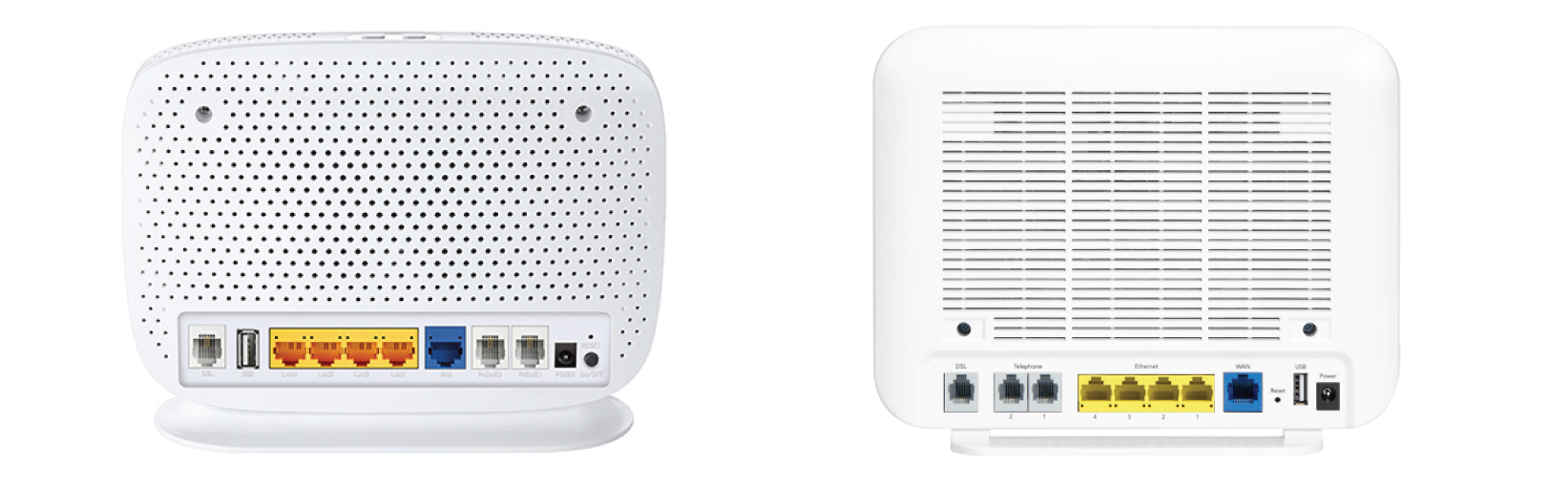
So, all you’ve gotta do is plug one end of the grey cable into the DSL port on the back of your modem, and the other into the telephone wall socket in the home.

6. Check for anything you might have missed.
Now that you’ve set the groundwork, you’ll want to make sure you haven’t missed anything important. This includes the basics like checking that the power cable is plugged into your modem, connected to a working power outlet and switched on.
You may also find that your DSL light doesn’t illuminate immediately. If it still doesn’t turn solid green after 15 minutes and you have more than one telephone wall socket in the house, you’ll need to plug your modem into all of these telephone wall sockets.
Then all you have to do is the classic on and off again move.
7. Play the waiting game.
This next bit is kind of a pain, ‘cos you have to do some waiting. Once everything is plugged in and checked, give your modem about 15 minutes for the DSL light to turn solid green.
Once the DSL light finally rocks up, you can start connecting your fave devices to the Wi-Fi!

8. Find your Wi-Fi name and password.
Whether you like it or not, all internet services are going to come with a password, and you can’t connect your phone or laptop without entering one (soz).
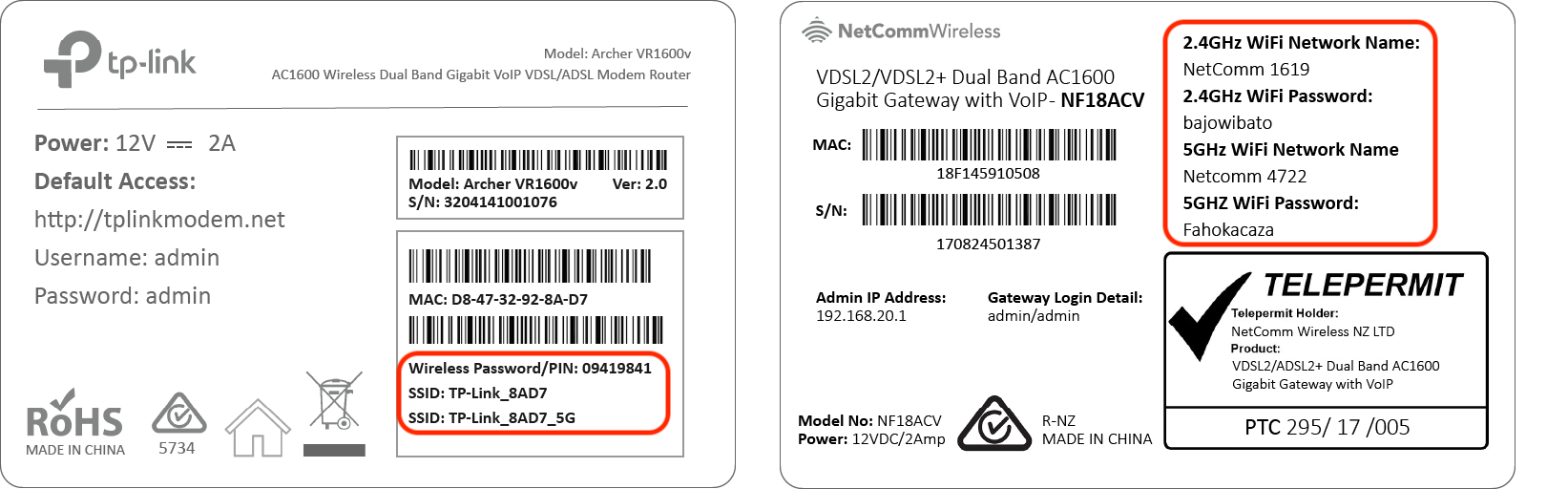
So, now you just have to find the modem’s Wi-Fi name and password. All of this info is printed on the bottom of your MATE modem.
If you’ve got a MATE TP-Link Archer VR1600v modem you need to find this:
- Wi-Fi network name – SSID.
- Wi-Fi password – Wireless Password/PIN.
Or, if you’ve got a MATE NetComm NF18ACV modem, you should find this:
- Wi-Fi network name – 2.4GHz WiFi Network Name / 5GHz WiFi Network Name.
- Wi-Fi password – 2.4GHz WiFi Password / 5GHz WiFi Password.
Just a tip - the 5GHz Wi-Fi band on the MATE modem has a much more powerful speed so this should always be used when possible!
9. Connect.
Finally—and this is the best bit—you can connect all of your phones, computers and televisions to the internet and stream or browse to your heart’s content.
10. Contact MATE if you need support.
If even after following all the right steps you find that you’re having some trouble with your modem, you can contact the support team at MATE for further help, troubleshooting and some awesome customer service.
If you're more of a visual person, check out this short video in collaboration with MATE so you can set up your modem with ease.
@beourmate Avoid the mess when setting up your nbn internet with MATE! #beourmate #letsbemates #nbn #mate
♬ original sound - LetsBeMates.com.au
Now that the hard bit is done, you’re all set to go. You can learn more about your first internet setup and what all of these confusing words mean right here.
If you want to learn more about MATE and their sweet as internet services, you can check out their plans on their website.

Header Image: Professor25 via Getty Images
Topics
Ref: 61a149d8-2ca8-4544-b991-acfb002e1156






Comments & Feedback
Share your opinion
Emoji cheatsheet Formatting Comment guidelines